Lately, I’ve been using Claude pretty heavily more than other LLMs. Over time, I’ve accumulated settings, plugins, and various configurations that I don’t want to lose. If I ever set up a new machine, I want to be able to restore those settings without rebuilding everything from scratch.
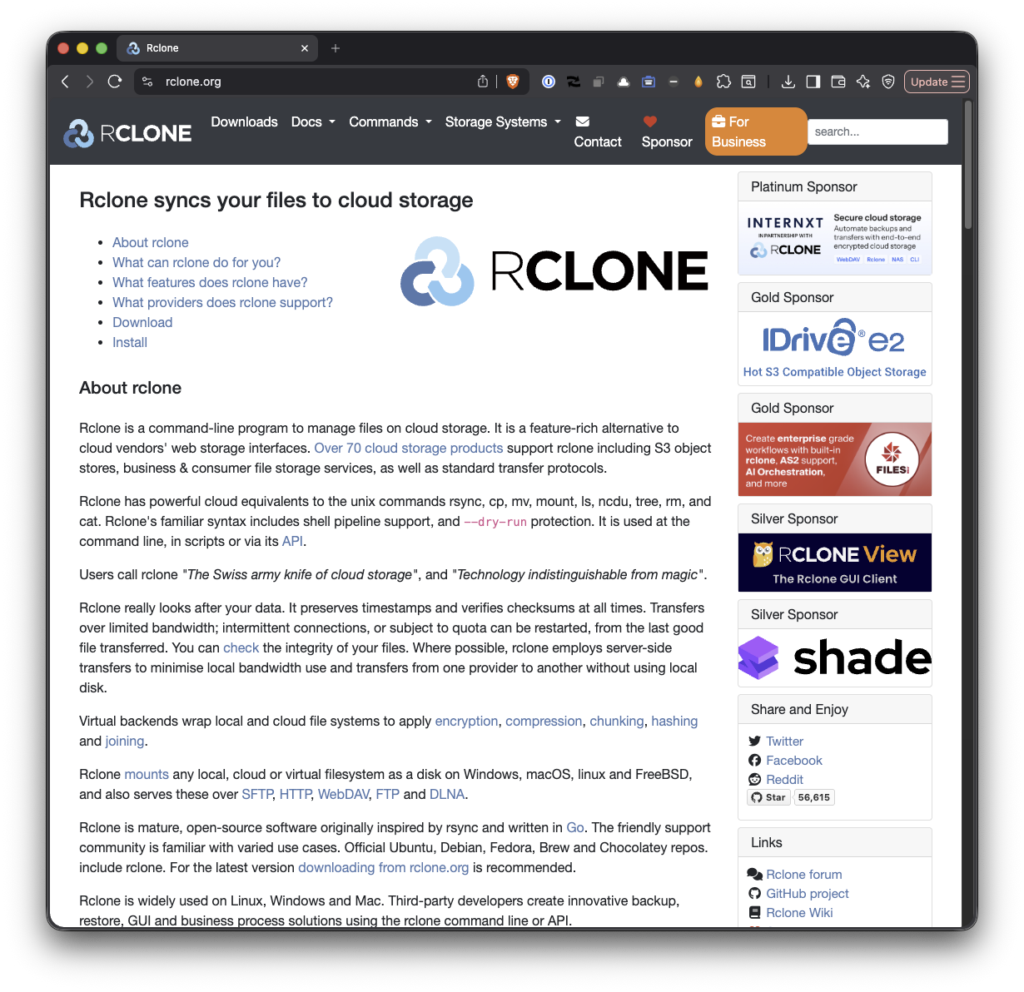
So I set up a backup system using rclone and Google Drive (though you can use any cloud provider of your choice with rclone).
The Problem
Claude stores its configuration in ~/.claude/, which includes:
settings.jsonandsettings.local.json. Your core settingsCLAUDE.md. Your custom instructions for Claudeplugins/. Plugins you’ve installed and their configurationskills/. Skills you’ve created or configuredcommands/. Custom commands you’ve definedmemory/. Your personal memory files
If your machine fails or you get a new one, that data is gone. You could lose hours of setup work.
I wanted a simple, automated solution that would back these up to the cloud daily without requiring manual intervention.
Why rclone?
There are a few ways to back up files to Google Drive. You could use the mounted volume directly, cron with rsync, or a third-party backup service.
Rclone is a command-line program to manage files on cloud storage. It is a feature-rich alternative to cloud vendors’ web storage interfaces. Over 70 cloud storage products support rclone including S3 object stores, business & consumer file storage services, as well as standard transfer protocols.
I chose rclone because it:
- Handles cloud syncing natively (no need to rely on a mounted volume)
- Works across platforms (macOS, Linux, Windows)
- Is a single tool with no dependencies
- Supports selective backups (sync only what you need)
- Is performant and reliable
The Setup
1. Install rclone
brew install rclone2. Configure Google Drive Access
rclone configFollow the interactive prompts:
- Choose
nfor new remote - Name it
gdrive - Select
drive(Google Drive) - Leave client ID and secret blank (uses rclone’s defaults)
- When prompted for service account, choose
n(you don’t need one) - Select Option 1: drive when asked about permissions
- This gives rclone access to your full Drive so backups appear in the normal folder structure, visible in the web UI and any mounted volumes
- Complete the OAuth flow in your browser
- Skip Team Drive setup with
n - Quit config with
q
Note: Avoid the drive.file scope. It sandboxes rclone’s files in a way that makes them invisible to the normal Drive UI and mounted volumes, even though uploads succeed. You won’t be able to see or verify your backups.
Security: rclone stores your OAuth tokens in ~/.config/rclone/rclone.conf. Don’t share that file, commit it to version control, or paste its contents anywhere. Treat it like a password.
3. Create the Backup Script
Create a script at ~/bin/backup-claude.sh:
cat > ~/bin/backup-claude.sh << 'EOF'
#!/bin/bash

CLAUDE_DIR="$HOME/.claude"
BACKUP_DIR="gdrive:backups/claude"
LOG_FILE="$HOME/.claude-backup.log"

# Core settings and instructions
rclone sync "$CLAUDE_DIR/settings.json" "$BACKUP_DIR/" \
  --ignore-errors -v >> "$LOG_FILE" 2>&1

rclone sync "$CLAUDE_DIR/settings.local.json" "$BACKUP_DIR/" \
  --ignore-errors -v >> "$LOG_FILE" 2>&1

rclone sync "$CLAUDE_DIR/CLAUDE.md" "$BACKUP_DIR/" \
  --ignore-errors -v >> "$LOG_FILE" 2>&1

# Plugins - only what's needed to restore
rclone sync "$CLAUDE_DIR/plugins/installed_plugins.json" "$BACKUP_DIR/plugins/" \
  --ignore-errors -v >> "$LOG_FILE" 2>&1

rclone sync "$CLAUDE_DIR/plugins/data" "$BACKUP_DIR/plugins/data/" \
  --ignore-errors -v >> "$LOG_FILE" 2>&1

# Skills - exclude .git directories
rclone sync "$CLAUDE_DIR/skills" "$BACKUP_DIR/skills/" \
  --exclude ".git/**" --ignore-errors -v >> "$LOG_FILE" 2>&1

# Commands and memory
rclone sync "$CLAUDE_DIR/commands" "$BACKUP_DIR/commands/" \
  --ignore-errors -v >> "$LOG_FILE" 2>&1

rclone sync "$CLAUDE_DIR/memory" "$BACKUP_DIR/memory/" \
  --ignore-errors -v >> "$LOG_FILE" 2>&1

echo "[$(date)] Claude settings backed up" >> "$LOG_FILE"
EOF

chmod +x ~/bin/backup-claude.sh
4. Test It
Run the script manually to verify it works:
~/bin/backup-claude.shCheck the log to see what happened:
tail -50 ~/.claude-backup.logYou should see files being copied and a success message at the end. Then check your Google Drive — you should see a backups/claude/ folder with your files in it.
If anything fails, the log will tell you what went wrong. You can also grep for errors specifically:
grep -i "error\|failed\|fatal" ~/.claude-backup.log5. Automate With launchd
On macOS, launchd is the native way to schedule recurring tasks (equivalent to cron on Linux). Create a plist file at ~/Library/LaunchAgents/com.local.backup-claude.plist:
cat > ~/Library/LaunchAgents/com.local.backup-claude.plist << 'EOF'

<?xml version="1.0" encoding="UTF-8"?>

<!DOCTYPE plist PUBLIC "-//Apple//DTD PLIST 1.0//EN" "http://www.apple.com/DTDs/PropertyList-1.0.dtd">

<plist version="1.0">

<dict>

<key>Label</key>

<string>com.local.backup-claude</string>

<key>ProgramArguments</key>

<array>

<string>/Users/YOUR_USERNAME/bin/backup-claude.sh</string>

</array>

<key>StartInterval</key>

<integer>86400</integer>

<key>StandardOutPath</key>

<string>/tmp/backup-claude.log</string>

<key>StandardErrorPath</key>

<string>/tmp/backup-claude-error.log</string>

</dict>

</plist>

EOF
Replace YOUR_USERNAME with your actual macOS username.
Load the agent:
launchctl load ~/Library/LaunchAgents/com.local.backup-claude.plistVerify it’s running:
launchctl list | grep backup-claudeWhat Gets Backed Up
The script backs up to backups/claude/ in your Google Drive:
backups/

└── claude/

├── settings.json

├── settings.local.json

├── CLAUDE.md

├── plugins/

│ ├── installed_plugins.json

│ └── data/

├── skills/

│ └── (your skills, minus .git/)

├── commands/

│ └── (your custom commands)

└── memory/

└── (your memory files)
The script intentionally skips a lot of what lives in ~/.claude/: plugin caches, marketplace data, session state, task history, telemetry, and other machine-specific files.
None of that transfers cleanly to a new machine and none of it represents work you’d lose. The goal is to back up what you created — not what Claude generated or downloaded on your behalf.
Why This Matters
Small configuration files are easy to overlook, but they represent real work. Settings you’ve tuned, plugins you’ve installed, skills you’ve created, commands you’ve written, memory you’ve built up. Losing them means rebuilding from scratch.
This setup takes 10 minutes to configure and then runs silently every day. If something ever happens to your machine, your Claude configuration survives.
That’s worth the small effort.
