My menu bar fills up the same way a junk drawer does (as does most of you running macOS can likely attest). Every utility, sync client, and helper app adds an icon, and most of them are things I need occasionally, not constantly. I’d rather they not sit there all day, crowding the few icons I actually look at.
There are good menu bar managers out there, but most of them come with more settings than I want, and some ask for Screen Recording or Accessibility access before they’ll do anything. I wanted something simpler: a place to put icons, and a way to close it.
So I built Drawer.
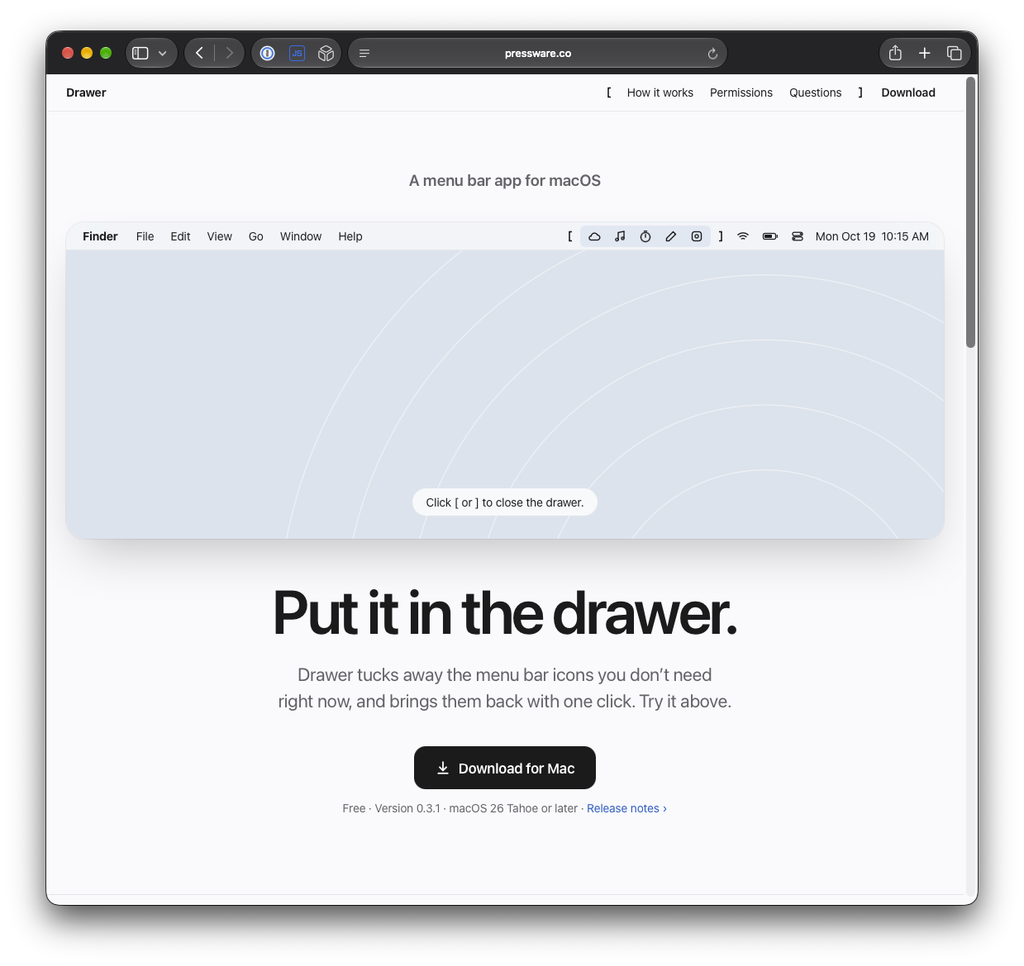
What Does Drawer Actually Do?
Drawer adds a pair of brackets to your menu bar: [ on the left and ] on the right. Anything between them is in the drawer.
- Put icons in the drawer. Hold ⌘ and drag the icons you want out of sight between
[and]. Anything to the right of], including Wi-Fi, battery, and the clock, always stays visible. - Close it with one click. Click either bracket and everything inside disappears, leaving a small archive box. Click the box to open it again.
- It remembers. Drawer comes back open or closed, however you left it.
- It knows about the notch. On a MacBook with a notch, Drawer tells you how many of the drawer’s icons fit beside it, so you can keep your favorites right next to
].
Right-click any part of the drawer for a small menu: open or close it, a link to the setup guide, About, and Quit. That’s the whole app. There are no preferences.


How It Hides Your Icons
macOS doesn’t let one app hide another app’s menu bar icons without special permission. What any ap can do is change the width of its own menu bar item.
So when you close the drawer, the ] quietly stretches to be very, very wide. Everything to its left, the [ and the icons inside, gets pushed off the edge of the screen, and the archive box takes its place. Opening the drawer shrinks it back.
That’s why Drawer needs no permissions, collects nothing, and never touches the network.
Get It
Drawer is free. Download it from the app’s homepage, open the DMG, and drag it into Applications. It’s signed and notarized by Apple.
Requires macOS 26 (Tahoe) or later.
Note
Drawer is still early (0.3.1 as I write this), so there may be rough edges. The trick it relies on also means anything to the left of [ gets hidden when the drawer closes, so keep the [ at the far left of your icons.
If something’s off, like an icon that won’t stay put or a drawer that won’t close, email me.
