Software Engineering in WordPress, PHP, and Backend Development

Category: Notes (Page 1 of 50)

Notes on programming-related problems that I’ve encountered while working on various projects.

Thanksgiving 2025

Last year, I wrote:

At this point, it’s more of a tradition to post on Thanksgiving Day than anything else. 

And I still hold that to be the case.

This year, I’d be remiss if I didn’t say something about looking forward to Stranger Things given that it’s been such a major show for the past nine(!) years and the first volume of the final began this weekend.

If you’re in the United States (or if you’re American and celebrating else where), I hope the day is great.

Next month, I look forward to doing another post on a retrospective of the year.

Thanksgiving 2024

At this point, it’s more of a tradition to post on Thanksgiving Day than anything else. I’ve been doing it for 12 years now.

Happy Thanksgiving

But the general sentiment is still the same as it was 10 years ago:

We’re celebrating Thanksgiving today in the United States, so I’m taking a day off of the typical routine.

If you’re in the United States and/or are celebrating today, may it be a good one. And if not, may your day still be just as great.

I’m looking forward to ending the year strong and with a few more posts as I try to get back in the habit.

Thanksgiving 2023

For nearly every year I’ve written, I’ve made sure to publish a post on the end-of-the-year holidays here in the United States.

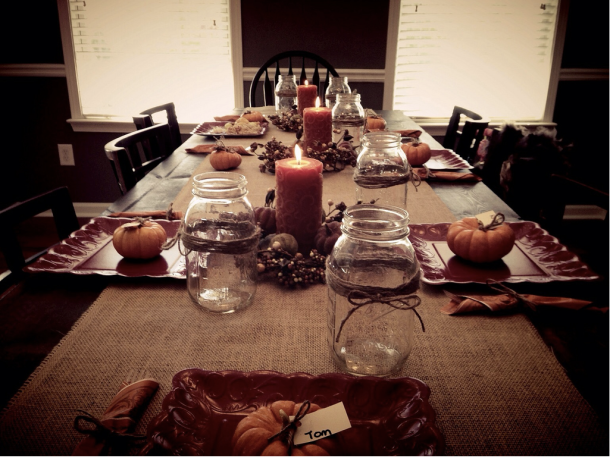
Happy Thanksgiving!
This is the earliest Thanksgiving photo I have in my library.

It’s neat to see what I wrote on this day 10 years ago in comparison to now:

For those of you who are in the United States and are celebrating Thanksgiving, I hope you guys have an awesome day hanging out with your family, friends, eating, sleeping, and generally enjoying the day off.

A lot has changed both personally and professionally since then (though I’m still working in the same industry and enjoying it as much as I always have), but the message is consistent: If you’re in the US, I hope you enjoy the time off; if you’re elsewhere, I hope you enjoy whatever you’re doing today, too.

Block Notes: Generate a Reference to a Block

I’m working on a block that, like many, isn’t limited to a single instance in the editor (and thus not the frontend); however, because there are certain features of the block I want to manipulate when the page loads, I want generate a reference to said block.

For example, the structure of the markup in the edit function looks something like this:

<div className="wp-acme-block">
  <div className="wp-acme-block-editor">
  </div>
  <div className="wp-acme-block-preview">
  </div>
</div>

The functionality will allow the user to toggle the visibility of the editor container and the preview container. And to manage this functionality, I want to access the parent element of each one. Specifically, the one with the class wp-acme-block.


And this is easy to do with a couple of features of React:

  • useRef is a hook that allows for direct interaction with the DOM. It returns a ref object that maintains a property called current. This enables us to maintain a reference to a specific element.
  • useEffect is a hook that handles side effects in functional components. It allows us to do a lot of things (like fetching data) but also allows us to manually work with the DOM.

Given those two hooks, I can place a ref attribute on the primary container that I can then use elsewhere in the code.

First, in the header of the file add the following:

import { useRef, useEffect } from 'react';

Then at the top of the edit function, I have the following code:

edit: ({ attributes, setAttributes }) => {
    const blockRef = useRef(null);
    // ...
};

Then, in the edit function where I have the markup that I’ve shown above, I’ll add the ref attribute:

<div className="wp-acme-block" ref={blockRef}>
  <div className="wp-acme-block-editor">
  </div>
  <div className="wp-acme-block-preview">
  </div>
</div>

And finally, I can use this reference in the edit function before it calls return so I can refer to the element in other functions.

useEffect(() => {
  acmePreviewFunction(blockRef.current);
}, []);

So the full, relevant code looks like this:

import { useRef, useEffect } from 'react';

// ...

registerBlockType('acme/example-block', {
  // ...

  attributes: {
    // ...
  },
  edit: ({ attributes, setAttributes }) => {
    const blockRef = useRef(null);

    // ...

    useEffect(() => {
      acmePreviewFunction(blockRef.current);
    }, []);

    // ...

    return (
      <div className="wp-acme-block" ref={blockRef}>
        <div className="wp-acme-block-editor">
        </div>
        <div className="wp-acme-block-preview">
        </div>
      </div>
    );
  },
  // ...
});

Then passing the current property as an argument to other functions, you’ve got access to the block such that you can manipulate it with other JavaScript functions.

Further, the ref will refer only to the instance of the block so it won’t manipulate other instances of the block located in the editor (or, more specifically, the DOM).


Block Notes: How To Nest Related Blocks

When creating a custom category into which you want to group your own blocks, you may also want to create a block that can only hold blocks that belong to that group. Or, in other words, you may want to create a block that can nest related blocks.

For example, in the last post, I showed how to create a custom category into which blocks can be grouped. And that works well when you can want to create a group for related blocks.

This can be taken a step further, though. Say you want to create a custom block that can only hold blocks that are part of your custom category.


The primarily things that need to be done to achieve this are:

  1. Make sure the block you’re creating is also part of the same custom category.
  2. In the supports attribute, specifically list the blocks the block in question will allow.

The edit and save functions don’t need to be particularly fancy for this unless you want to achieve something more.

First, the attributes section of your block may look something like this:

Notice here it has the standard title, icon, and category all blocks have (and the category matches what was outlined previously. Now add an allowedBlocks array to the supports attribute. This is where you can restrict the blocks that can be contained within this block.

The important thing to note is that you know the namespace and name of the blocks (these are of the format namespace/block-name and are usually was you find when calling registerBlockType.

Finally, in the edit function, add this attribute to the InnerBlocks components. From the component in the GitHub repository:

InnerBlocks exports a pair of components which can be used in block implementations to enable nested block content.

The code for edit can, out of the box, look like this:

And the save function looks like this:

Finally, once you’ve done all of this and rebuilt the assets, then the block panel within the editor should yield something that looks like this:

And that’s it.


As mentioned earlier, you can see edit and save are simple. It’s possible to make them as elaborate as needed, but if you’re just building a container to support your custom blocks, this is all you need.

« Older posts

© 2025 Tom McFarlin

Theme by Anders NorenUp ↑